Install ZyperOS on the GKD Pixel 2
ZyperOS Installer downloads ZyperOS and writes it to your microSD card. It works on macOS, Windows and Linux. The GKD Pixel 2 starts from that card, so installation does not change the handheld's internal storage.
On this page
Download the installer
Open the ZyperOS download page and choose your computer. The page has installers for macOS, Windows and Linux.
Before you start
- Use a microSD card with enough space for your games.
- Connect a card reader to your computer.
- Back up any files you want to keep from the card.
- Keep the original card if you want an easy return to the stock system.
Fresh install erases the selected card. Check its name and capacity before you confirm.
Open the installer
- macOS: Extract the ZIP file and open ZyperOS Installer. If macOS blocks it, open System Settings > Privacy & Security. Select Open Anyway.
- Windows: Open the downloaded EXE. If Windows shows its protection message, select More info, then Run anyway. Allow administrator access when asked.
- Linux: Install the DEB or RPM package. Open ZyperOS Installer from your apps.
Writing a card needs permission. macOS and Linux ask for your password. macOS can also ask for access to removable volumes.
Write ZyperOS to the card
- Put the microSD card in the reader.
- Select GKD Pixel 2 in ZyperOS Installer.
- Select the latest ZyperOS release.
- Select your microSD card.
- Choose Fresh install.
- Check the card details in the confirmation window.
- Confirm that you want to erase that card.
- Wait until the installer reports completion.
The installer checks the download against the release's checksums. It reads back the written data to check the card. It ejects the card when the work finishes.
Start the handheld
- Put the card in the Pixel 2.
- Turn the handheld on.
- Wait for the first setup to finish.
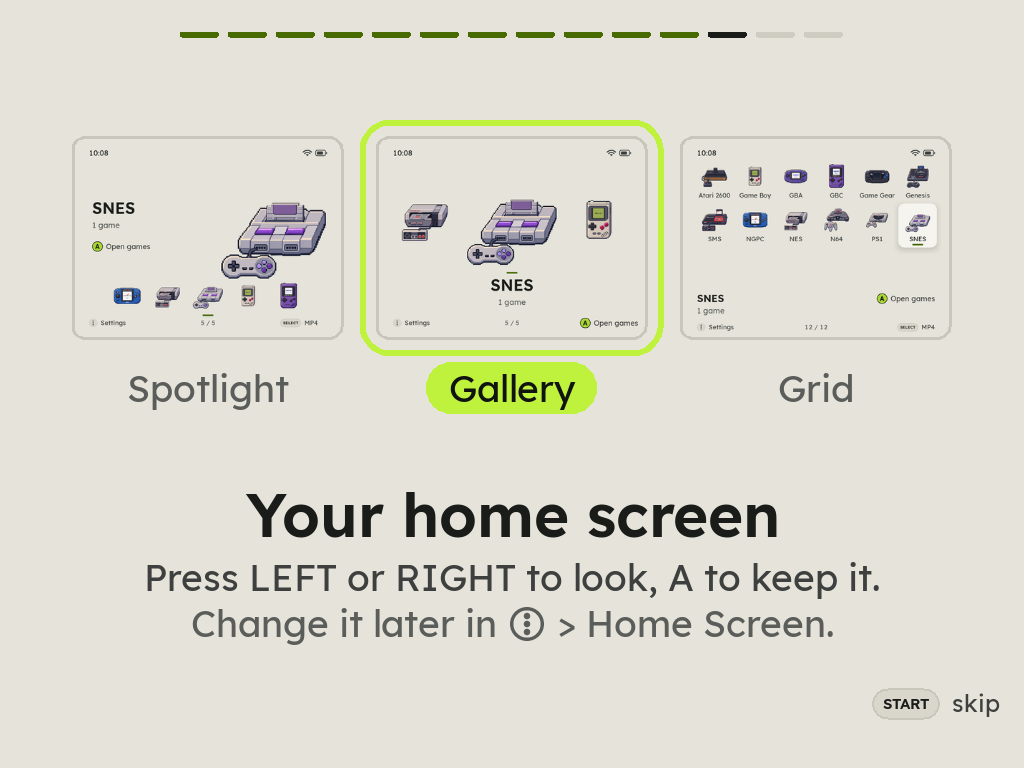
- Follow the tutorial on the handheld.
The first setup takes about a minute. ZyperOS prepares the remaining card space for games, music, saves and settings. Your computer sees this space as the ZYPEROS drive.
Copy games into their system folders in Roms/. The adding games guide covers card readers, USB and Wi-Fi transfers. The ZyperOS guide explains everyday use.
Update an existing ZyperOS card
Back up important files before an update. In ZyperOS Installer, select your existing card and choose Update. This changes the system and keeps your games, music, saves and settings.
You can also use System Update on the handheld. The connection guide explains its network options.
Use the card image instead
The installer is optional. Open Card image and checksums on the download page for the Pixel 2 image and SHA256SUMS.
- Check the image against its entry in
SHA256SUMS. - Open your disk-image writer.
- Select the Pixel 2 image.
- Extract the
.img.xzfirst if your writer needs an uncompressed.img. - Select the card and write the image.
- Eject the card after the writer finishes.
This method erases the card. Continue with Start the handheld above after writing it.
If setup stops
Wait a minute if the first start stops. The card records setup details in zyperos-setup.txt on its PX2BOOT drive. Keep that file when you request help.
Windows can offer to format the card's system partitions. Choose Cancel. Those partitions contain ZyperOS and do not need formatting.
To return to the stock system, turn the handheld off and insert your original card.