GKD Pixel 2 Wi-Fi: Which USB Adapter Works
The GKD Pixel 2 has no Wi-Fi radio and no Bluetooth. What it has is a USB-C port that can host a device, so a small USB Wi-Fi adapter gives it Wi-Fi while it is plugged in. On ZyperOS that unlocks box art, RetroAchievements and Wi-Fi File Transfer. This guide says which adapter to get, and which chips will not work.
On this page
These steps cover ZyperOS 1.0.5. Check your version in MENU > About.
The short answer
- Get a TP-Link TL-WN725N, hardware version 2 or 3. Its chip is the Realtek RTL8188EUS. It is the adapter ZyperOS is tested with, and the only kind that can also make the handheld's own network.
- Add a small USB-A to USB-C adapter, since the TL-WN725N has a USB-A plug and the Pixel 2 has a USB-C port.
- It is 2.4 GHz only, 802.11n up to 150 Mbps. That is plenty for covers, achievements and moving games.
- No adapter? An Android phone with USB tethering, on the USB cable, gives the handheld the phone's internet instead (below).
Why the chip matters
A Wi-Fi adapter works only if the system has a driver for its chip, and an adapter's box rarely names the chip. ZyperOS's Linux, plastron, keeps its kernel small, and carries two Wi-Fi drivers:
| Driver | Chips | On ZyperOS |
|---|---|---|
| Realtek's own 8188eu | RTL8188EU and RTL8188EUS, such as the TL-WN725N v2 and v3 | Joins networks, and can be the handheld's own network |
| The kernel's rtl8xxxu | Other Realtek 802.11n chips it drives, such as the RTL8188FU, RTL8192EU, RTL8723BU and RTL8192FU | Joins networks; not tested by me |
| None | Realtek 802.11ac chips (RTL8811AU, RTL8812AU, RTL8821CU, RTL8822BU and others), and MediaTek, Atheros and Intel chips | No driver |
So skip the dual-band "AC" adapters: most use the 802.11ac chips in the last row, which need the kernel's rtw88 drivers, and ZyperOS's kernel does not have them.
The TL-WN725N's chip goes to Realtek's own driver, not the kernel's, because the kernel's driver can only join a network. Realtek's can also be an access point, which Wi-Fi File Transfer uses when no network is around.
TP-Link has sold several hardware versions of the TL-WN725N. Its support page lists V1 to V4.60, and offers Linux drivers for V3 but only a Windows driver for V4.60. I tested V2 and V3. If the box says another version, it may carry another chip.
Plug it in
- Put the adapter in a USB-A to USB-C adapter, and that in the Pixel 2's USB-C port.
- ZyperOS loads its driver when it is plugged in. Open the home menu with MENU. Wi-Fi and Wi-Fi File Transfer appear under Connections; Achievements appears under Games.
- Open MENU > Connections > Wi-Fi, pick your network and type its password. The handheld remembers it, on the card, and joins it again next time.
Each time Wi-Fi connects, ZyperOS sets the clock from the network, and a phone's USB tethering sets it too. With neither, set the time once in MENU > System > Date & Time.
One port, two jobs
The Pixel 2 has one USB-C port, and it is also where it charges and where a computer connects. So while the Wi-Fi adapter is in, the port is not free for a charger or a computer, and USB File Transfer waits for the cable. ZyperOS shows this plainly: on a card with no games, the way that cannot start now is dimmed and says why, and it lights up when you plug in or unplug.
Without an adapter, USB File Transfer moves games over the cable with no Wi-Fi at all. The adding games guide shows both.
What Wi-Fi unlocks
- Box art and video snaps, fetched on the handheld.
- RetroAchievements: the sign-in, and each game's first start.
- Wi-Fi File Transfer from any browser, and with no network around, the handheld's own network.
- Album Art for MP4, and the clock set from the network.
No adapter? A phone on the cable
An Android phone with USB tethering gives the handheld the phone's internet over a USB-C to USB-C cable, with no adapter at all:
- Plug the phone into the Pixel 2. When it asks What did you plug in?, choose Phone. The handheld powers the phone and asks you to turn on USB tethering.
- On the phone, turn on USB tethering (Settings, then Hotspot and tethering). USB File Transfer opens by itself, for the phone's own browser.
While tethering is on, the handheld uses the phone's internet as it would Wi-Fi: box art, achievements, System Update and PortMaster's install work over it, and it sets the clock. Close File Transfer with B and the phone stays connected. The phone may be on mobile data, so nothing large starts by itself: a System Update download cut short waits for you to press A.
An iPhone shares its network over USB only with a computer it trusts, which the handheld can't be, and some Android devices have no USB tethering at all. With those, the handheld needs the Wi-Fi adapter to get online.
If Wi-Fi keeps dropping
The TL-WN725N's chip is known to drop off some home routers again and again while its power saving is on, so ZyperOS turns its power saving off whenever it is on a network. If a network still drops, the handheld writes down why: each join and each drop, with the reason the network or the adapter gave, goes in wifi.log. On the File Transfer page, Download logs (under the folders, behind the ⋯ on a phone) packs it with the other logs, ready to send with a bug report. Network names are masked in it.
The handheld's own network
With the TL-WN725N in and no network joined, MENU > Connections > Wi-Fi File Transfer makes the handheld a Wi-Fi network for as long as its screen is open. It shows a QR code, the network's name and password, and the PIN. Your phone joins by the code, and the transfer page opens by itself.
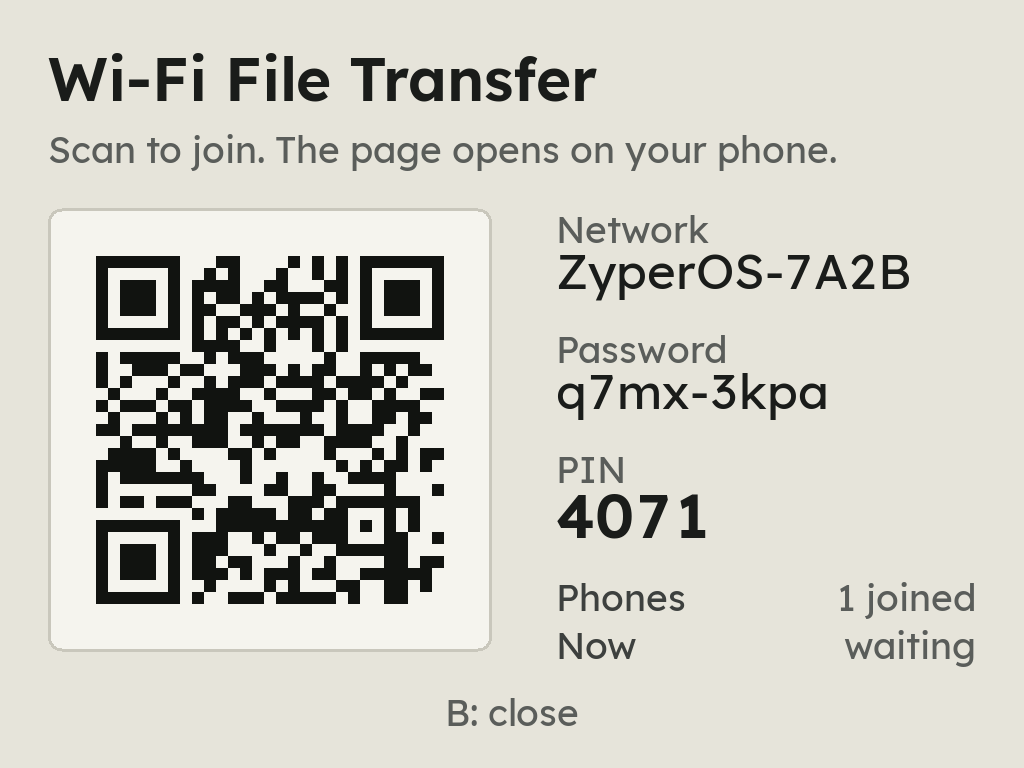
An adapter whose driver cannot be an access point shows Could not start the hotspot. It can still join a normal network.
Sources
- plastron at 04f83e1:
buildroot/board/px2/linux.config(rtl8xxxu on, rtw88 off),buildroot/board/zyperos/rootfs-overlay/etc/modprobe.d/rtl8188eu.conf(RTL8188EU adapters to Realtek's 8188eu, for the access point). - Linux kernel, rtl8xxxu's Kconfig and its tested device table and rtw88's Kconfig: which chips each driver covers.
- TP-Link: the TL-WN725N's specifications (2.4 GHz, up to 150 Mbps) and its support page (hardware versions and their drivers), read 7 November 2026.